DNMLinks Guide: Installing and using PGP on Linux
A comprehensive guide on how to use PGP for secure communication on Linux, including key creation, message encryption, and decryption.
Introduction
This guide will walk you through the process of using PGP (Pretty Good Privacy) on Linux, specifically using the OpenPGP Applet. You will learn how to create your own PGP key, send encrypted messages, receive encrypted messages, and export your PGP key.
Creating Your PGP Key
After installing the OpenPGP Applet (installed by default on Tails), you will notice a clipboard either in the taskbar or the lower right corner of your screen. Left-click the icon and select Manage Keys.
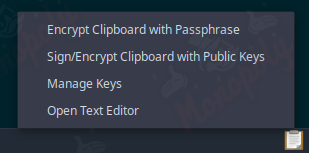
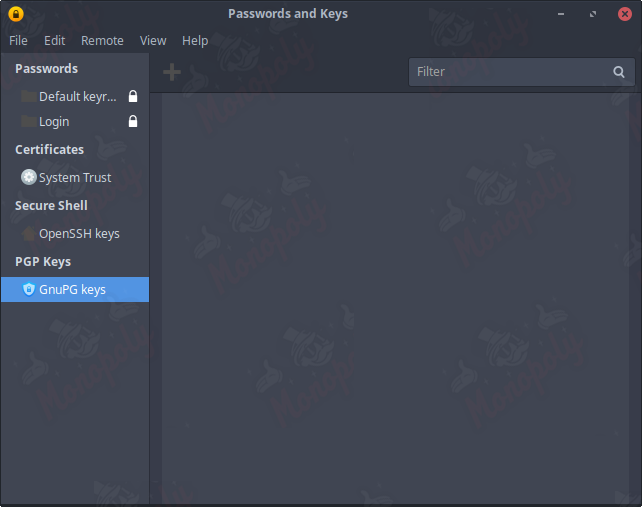
Select GnuPG keys in the list on the left, then click the plus icon towards the top left center of the window.
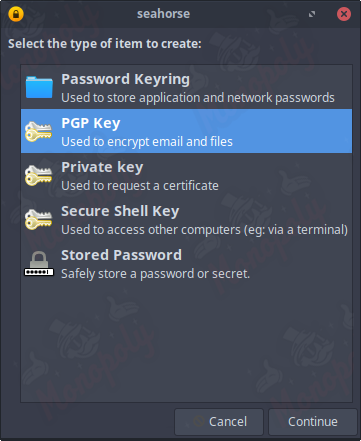
When prompted with what type of item you would like to create, select PGP Key.
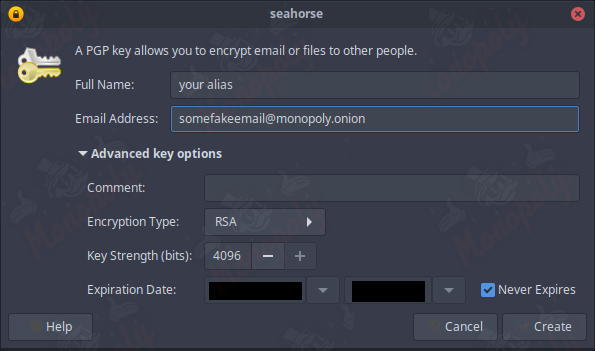
Input your alias and a fake/secure email in the details form. Ensure the key does not expire and select the highest value for key strength (4096 bits), then click create.
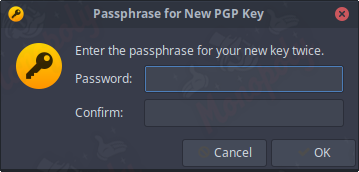
Enter a secure password that you need to remember, as it is required for importing, exporting, and interacting with your key.
To view your public key, click on the name of your key in the list, select edit, then copy it.
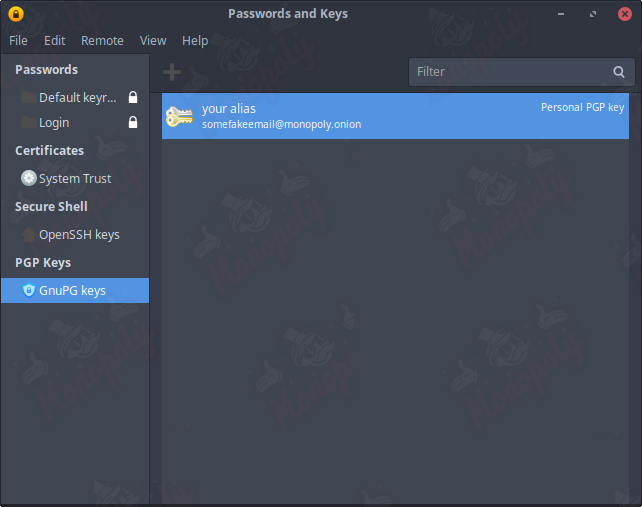
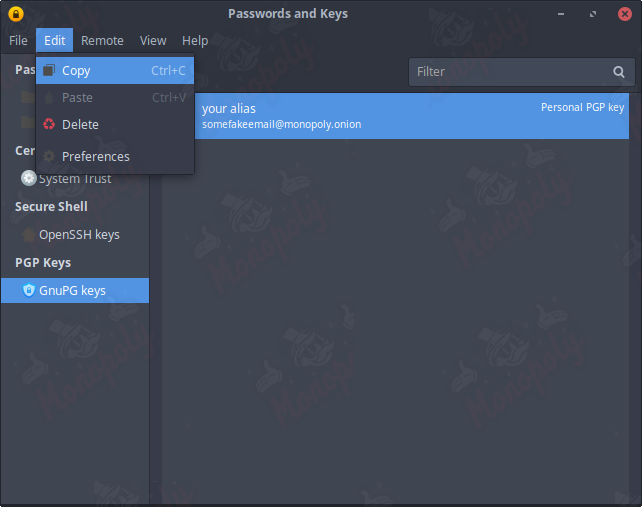
Your public PGP key is now copied to your clipboard, ready to be shared.
Sending a PGP Encrypted Message
Obtain the PGP public key of the individual you wish to communicate with, likely the vendor. You can find the vendor's PGP key on your orders tracking page.
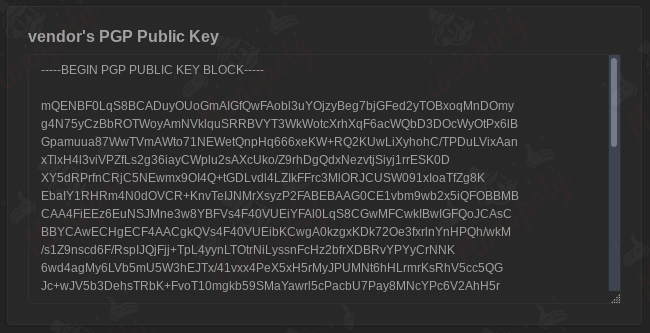
Copy the individual's public key into a notepad document and save it. Return to the manage keys window.
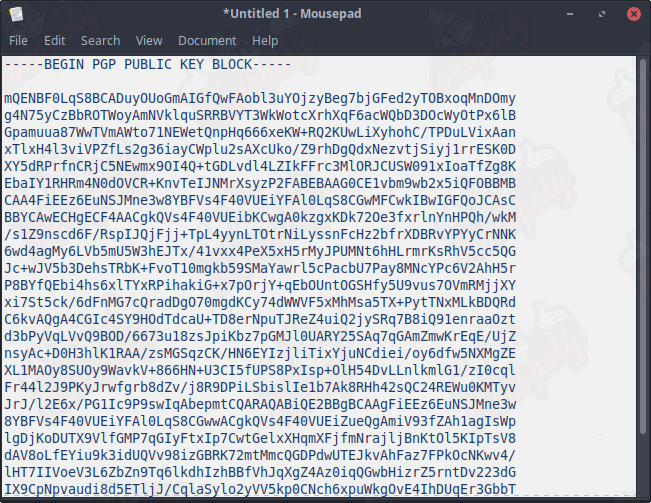
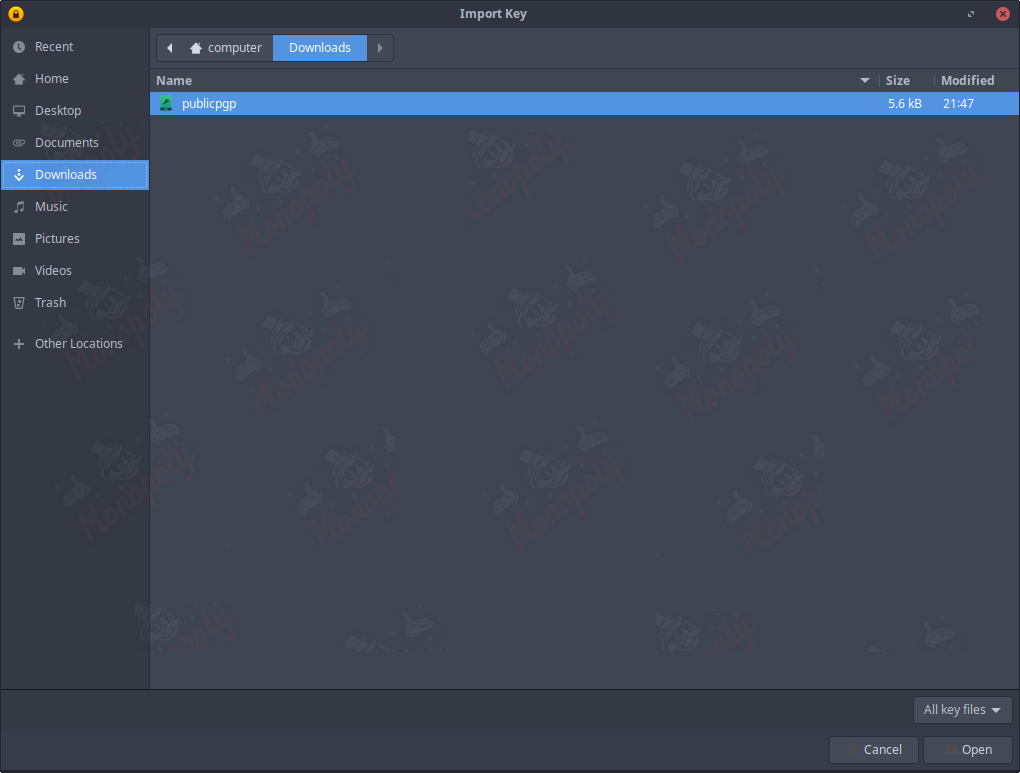
Click on file, then import, select the file you just saved, and click open. Click import in the popup window.
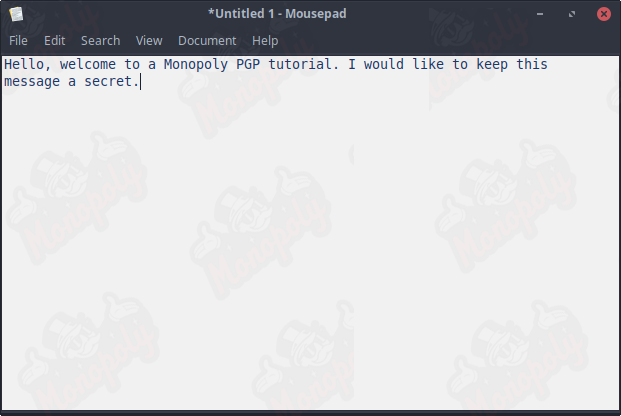
Open a blank notepad document, type your message, and copy it to your clipboard.
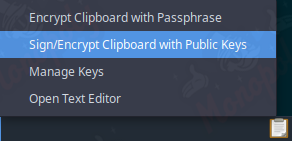
Go back to the clipboard icon, left-click, and select sign/encrypt clipboard with public keys.
Choose the key you imported earlier, check the box next to the correct name, and press ok. There is no need to sign the message.
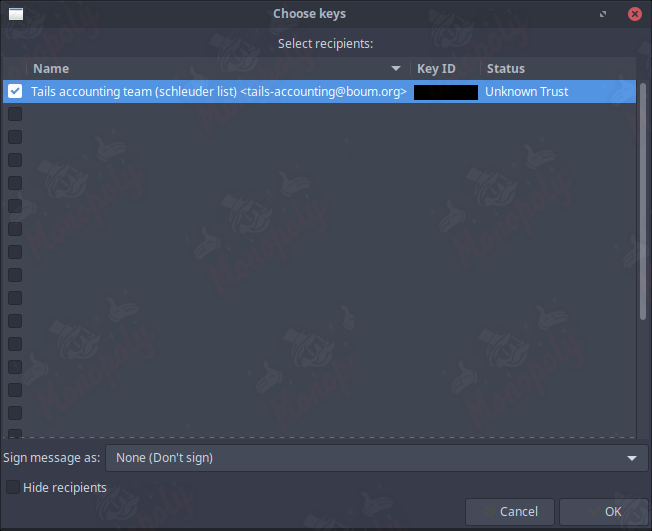
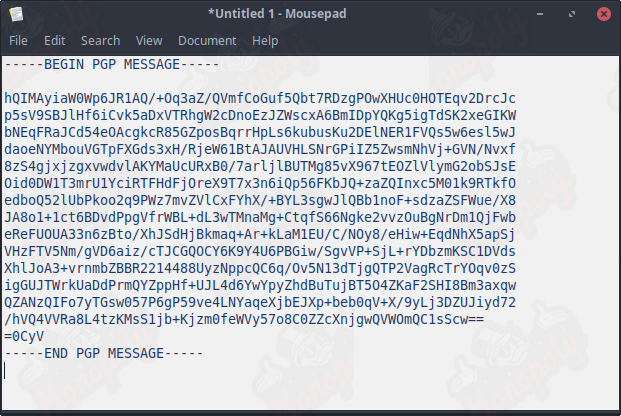
The encrypted message is now saved to your clipboard. Send this string of text to the intended individual.
Receiving a PGP Encrypted Message
To receive a PGP encrypted message, the sender will use your public key to encrypt a plaintext message. Copy the entire PGP message onto your clipboard.
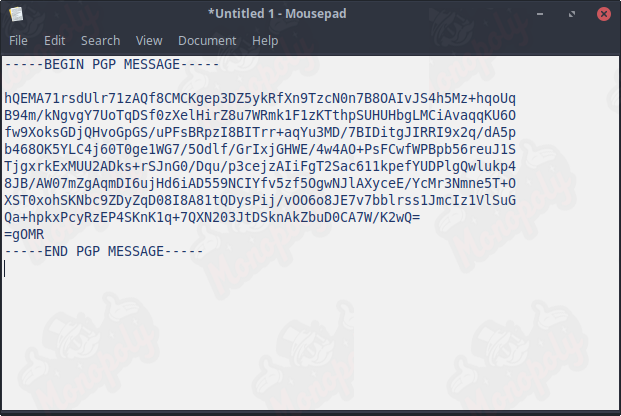
You will notice the clipboard icon in the bottom right corner now has a padlock indicating that you have a message pending decryption. Left-click the icon and select decrypt/verify clipboard.
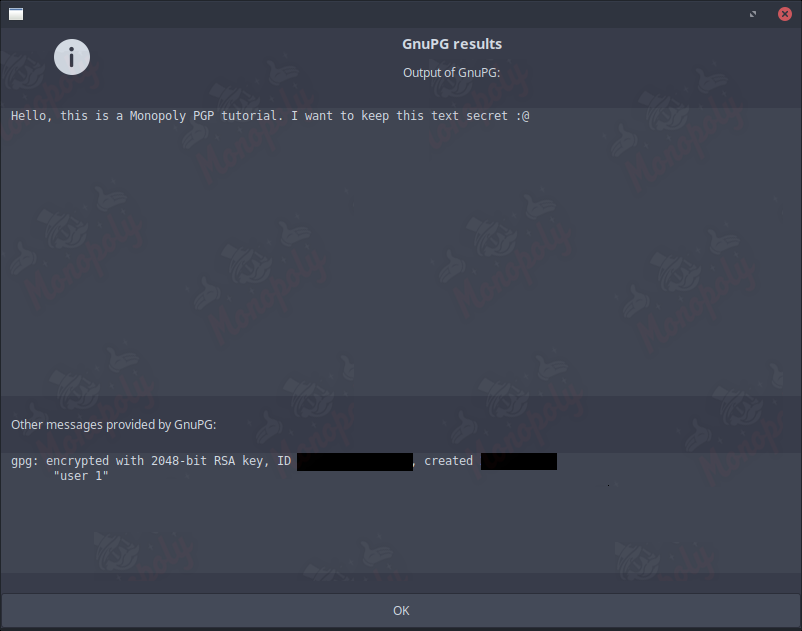
A popup will appear asking for your password (the one you set up earlier). Enter it, and your message will appear if the encrypted message was intended for you.
Exporting and Saving Your PGP Key
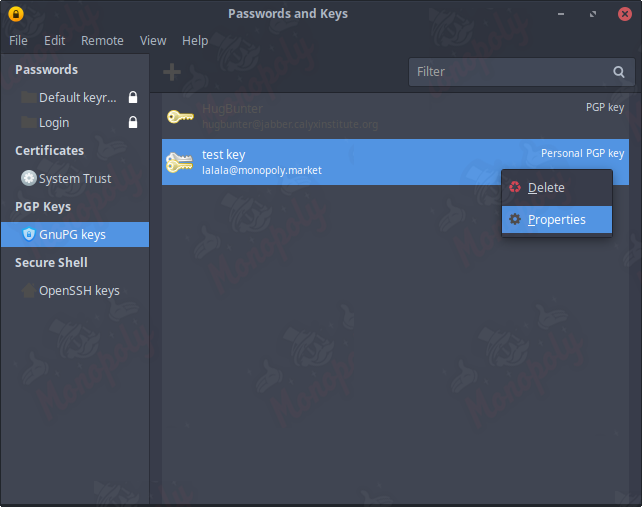
Left-click on the clipboard icon, then select manage keys. In the left list, select GnuPG keys to display all your imported keys. Right-click on your personal PGP key and select properties.
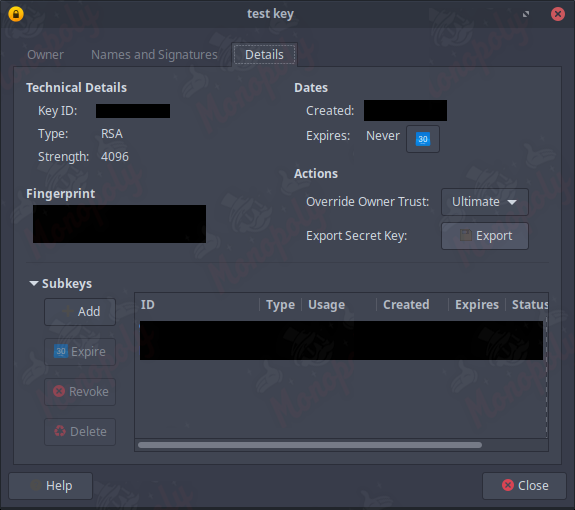
In the properties menu, select the details tab and click on export secret key. A window will pop up asking for your password; enter it and save the file in a secure location.
To import a key, go back to the manage keys menu, click file, then select import, and choose the .asc file you saved previously.
Best Practices for Using PGP
- Always use a strong, unique password for your PGP key.
- Regularly back up your PGP keys and store them in a secure location.
- Verify the public keys of individuals you communicate with to prevent man-in-the-middle attacks.
- Keep your software updated to protect against vulnerabilities.
- Consider using a dedicated device for sensitive communications.
Conclusion
Using PGP on Linux is an effective way to secure your communications. By following the steps outlined in this guide, you can create your own PGP key, send and receive encrypted messages, and ensure that your private information remains confidential. Always prioritize security and stay informed about best practices.
Table of Contents
Related Articles
DNMLinks Guide: How to Buy Bitcoin & Withdraw to Electrum Wallet
Learn how to buy Bitcoin in different regions of the world, and securely withdraw Bitcoin to your Electrum wallet.
Read ArticleDNMLinks Guide: How to Install Electrum Bitcoin Wallet
Learn how to install Electrum, a secure and lightweight Bitcoin wallet, on Windows, macOS, and Linux.
Read ArticleDNMLinks Guide: How to Install Feather Wallet (Monero)
Learn how to install Feather Wallet, a privacy-focused Monero (XMR) wallet, on Windows, macOS, and Linux.
Read ArticleSecurity Tips
Essential security practices to stay safe when browsing darknet markets.
View Tips